Review the history
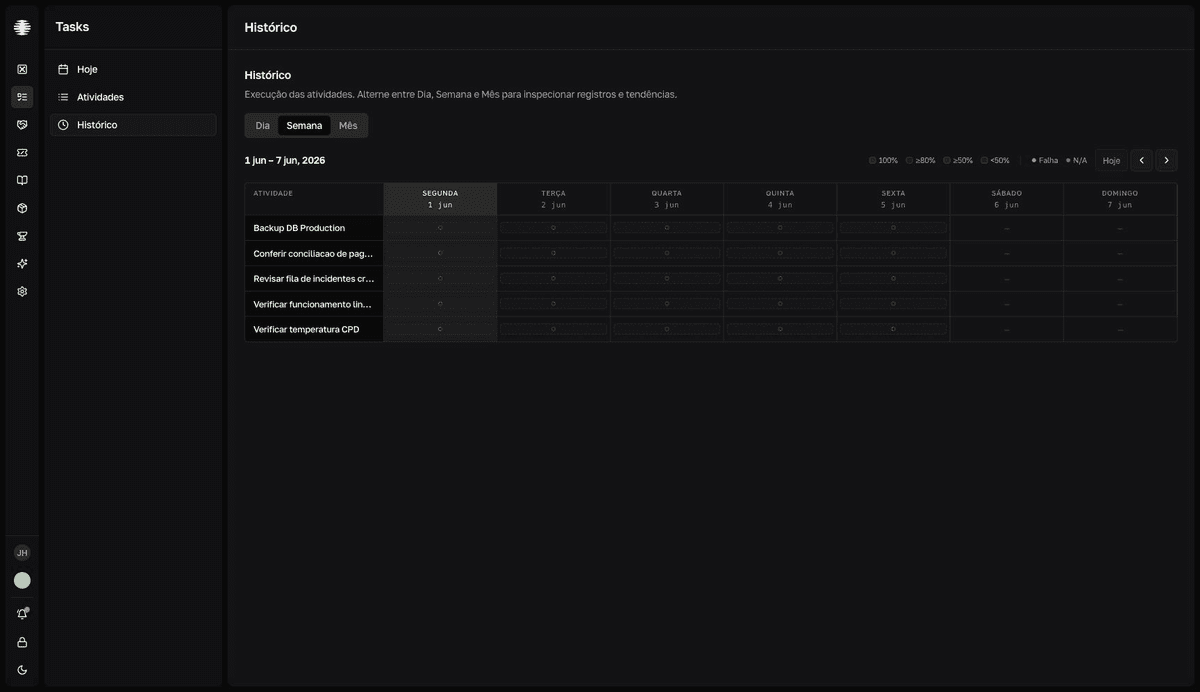
History is a calendar of the team's execution at three zoom levels — Dia (day), Semana (week), and Mês (month). Use it to audit past records and spot trends.
Navigate the calendar
- 1
Open `History` in the Tasks navigation.
The screen opens on the
Semana(week) view. Switch betweenDia(day),Semana(week), andMês(month) with the tabs. - 2
Move the period with `Anterior` (previous) and `Próximo` (next).
The
Hoje(today) button returns to the current period. The selected date is shared across views: clicking a day inSemanaorMêsopens that day in theDiaview. - 3
Read the colors with the legend.
In
SemanaandMês, each day's tint follows theOKpercentage:100%,≥80%,≥50%, and<50%. Red dots markFalha(failure, NOK) and gray onesN/A. See Statuses and colors.
What each view answers
| View | What it shows | Use it to |
|---|---|---|
Dia (day) | The day's list, grouped into Pontuais (one-time) and times, with one status badge per task: Pendente (pending), OK, NOK, or N/A. Click a row to open the details panel. | Check a specific day, record by record. |
Semana (week) | An activity × day matrix. Each cell is a colored chip with status dots per time; the tooltip details each time. Click a cell to open the day. | See patterns per task — which routine has been failing on which days. |
Mês (month) | A monthly grid with the quality tint per day, NOK and N/A dots and, in each day's footer, the total of times and the OK percentage. | See the month's trend and locate critical days. |
A dash is not a pending item
In the Semana (week) view, — means the activity wasn't scheduled that day. A dashed chip with a hollow dot means scheduled and Pendente (pending) — there was a time and nobody logged it.
History of a specific task
To audit a single task, click it in any list and open the Histórico (history) tab of the details panel: the last 50 records, with date, time, status, and message. The tab is read-only — fixes apply only to records from today; see Fix a record.