Set up reminders
Each task can send its assignees two email notices: one before the scheduled time and another when the time passes with no record. Both live in the Notificações por e-mail (email notifications) section of the task form.
Turn on the reminders
- 1
Open the task for editing.
In
Activities, open the row's⋯menu and clickEditar(Edit) — theEditar tarefa(Edit task) dialog opens. When creating a new task, the same section sits at the end of theAdicionar tarefa(Add task) dialog. - 2
Turn on `Notificar antes do horário agendado` (notify before the scheduled time).
In
Minutos antes(minutes before), set how far in advance the assignees receive the email — for example, 15. - 3
Turn on `Notificar se a tarefa não for concluída` (notify if the task is not completed).
In
Minutos depois(minutes after), set how long after the time, with no record, the assignees receive the notice — for example, 30. - 4
Click `Atualizar tarefa` (Update task).
resultToast "Tarefa atualizada com sucesso." (Task updated successfully.) The reminders apply from the next occurrences on.
Sending conditions
- The task needs
Responsáveis(assignees) — with no assignees, no reminder is sent. - Sending is processed every 5 minutes, so the email's timing is accurate to about 5 minutes.
- Reminder times follow the team's time zone, set in the team settings — it can differ from your local time zone, which is what drives the
Todayscreen.
Check what was sent
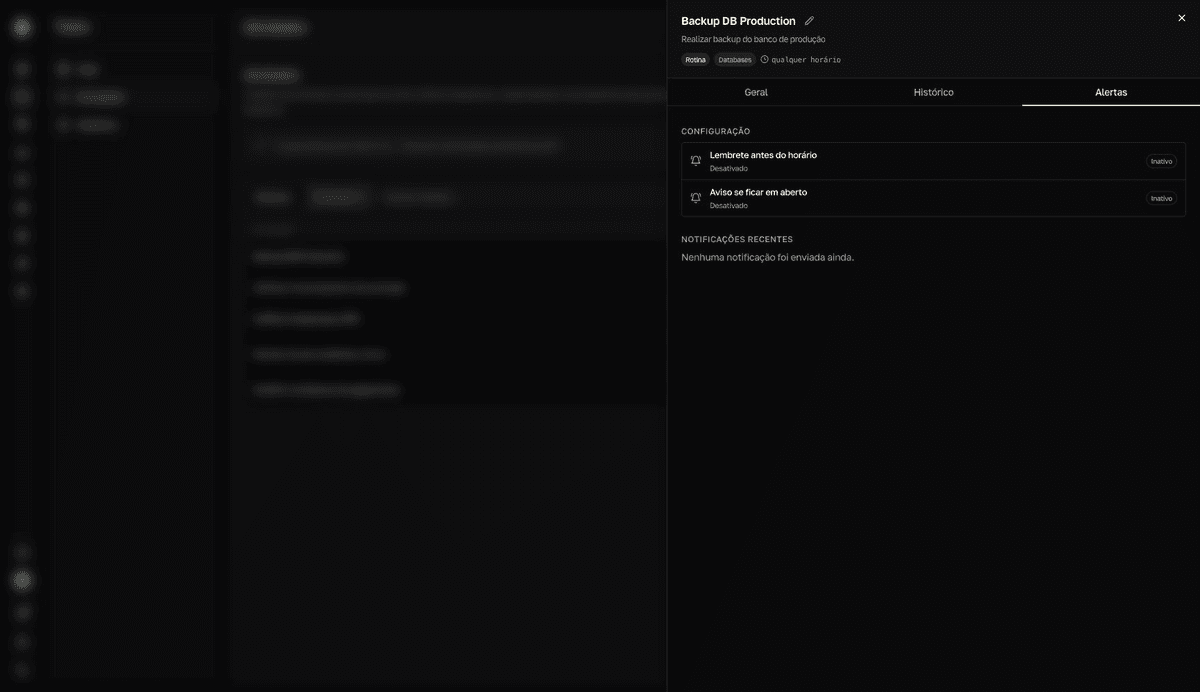
Click the task in any list to open the details panel and go to the Alertas (alerts) tab. Under Configuração (configuration), each reminder appears as Lembrete antes do horário (reminder before the time) and Aviso se ficar em aberto (notice if left open), with an Ativo (active) or Inativo (inactive) badge — the tab is read-only; to change anything, go back to Editar tarefa (Edit task). Under Notificações recentes (recent notifications), you see the latest notices sent, with date and time. The link in the email opens the task right in the app.