Configure providers
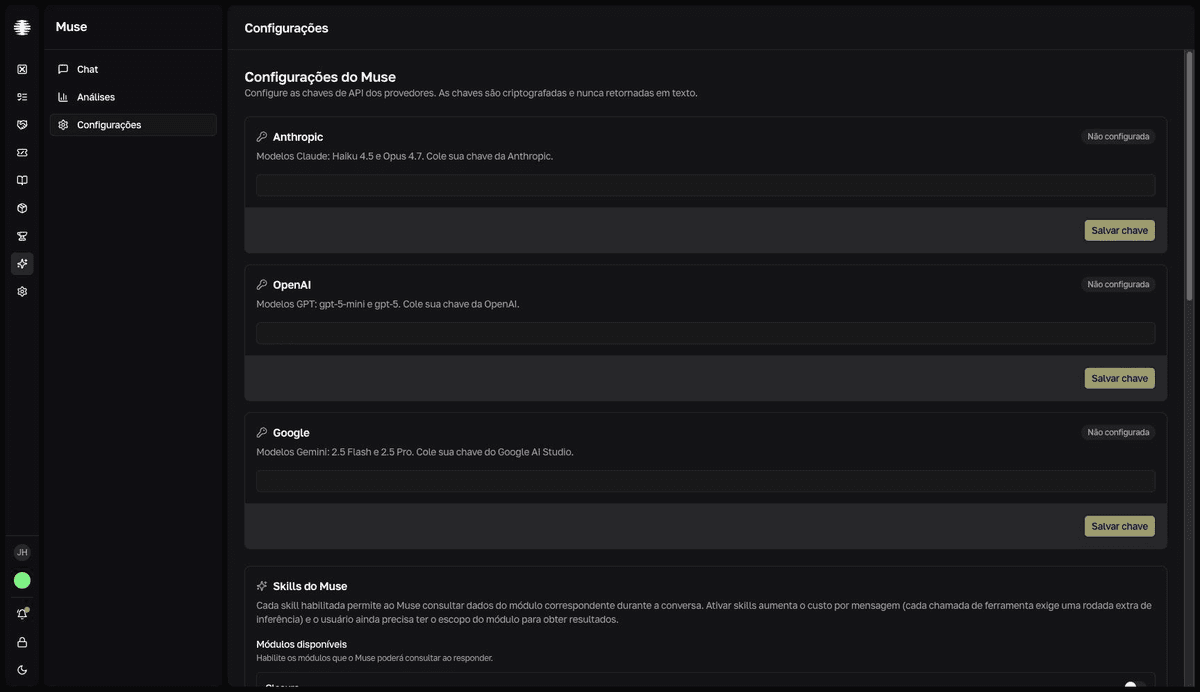
Save at least one provider key to make models available in chat. Keys are encrypted and never returned as text.
Add a key
- 1
Open `Settings` in Muse.
Only Muse administrators can access this screen. Each provider card shows the
Configurada(Configured) orNão configurada(Not configured) badge. - 2
Paste the key into the provider's card.
Get the key from the provider's console: Anthropic, OpenAI, or Google AI Studio. The field shows the expected format.
- 3
Click `Salvar chave` (Save key).
resultThe `Chave salva com sucesso` (Key saved successfully) confirmation appears. The models show up in `Modelos disponíveis` (Available models) and in the Chat's `Modelo` (Model) selector.
Models unlocked per key
| Provider | Key format | Models unlocked |
|---|---|---|
| Anthropic | sk-ant-api03-... | claude-haiku-4-5, claude-opus-4-7 |
| OpenAI | sk-proj-... | gpt-5-mini, gpt-5 |
AIza... | gemini-2.5-flash, gemini-2.5-pro |
Replace or remove a key
Use Substituir chave (Replace key) to swap the key of an already-configured provider — the field is always empty, because the saved key is never displayed back. Use Remover (Remove) when the team should no longer use the provider; the Chave removida (Key removed) confirmation appears.
Removing the key stops that provider's conversations
Each conversation is tied to the model chosen at creation. When you remove the key, those conversations stop answering with the message "A chave do provedor foi removida. Peça ao administrador para reconfigurá-la." (The provider key was removed. Ask the administrator to reconfigure it.) Save a new key for the same provider so they work again.