Start a conversation
Start a conversation to ask about team data, request summaries, or run an analysis. Each conversation uses a fixed model, chosen at creation.
Create the conversation and send the first message
- 1
Open `Muse` in the sidebar and go to `Chat`.
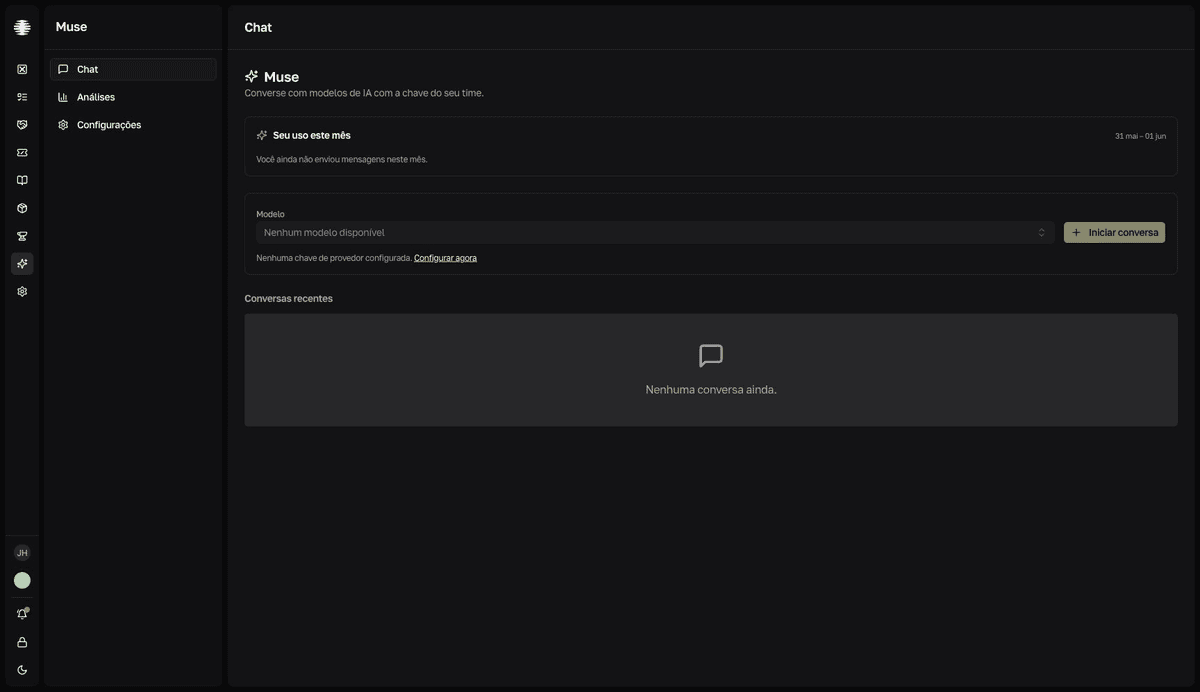
The screen shows the
Seu uso este mês(Your usage this month) panel, theModelo(Model) selector, and theConversas recentes(Recent conversations) list. - 2
Choose a model in `Modelo`.
Items follow the format
Anthropic · claude-opus-4-7. The last model used in the team comes pre-selected. If you seeNenhum modelo disponível(No model available), an administrator still needs to configure a provider. - 3
Click `Iniciar conversa` (Start conversation).
The chat opens empty, with a greeting and four suggested questions. Clicking a suggestion fills the field without sending.
- 4
Type in `Pergunte ou peça ao Muse…` (Ask or request from Muse…) and press `Enter`.
Shift+Enterbreaks the line without sending.resultThe answer streams in. The activity panel and the `Fontes` (Sources) section show what Muse queried.
While the answer streams
- To stop generation, click
Parar(Stop). The partial answer is discarded from the screen. - If you scroll up, the
Rolar para o fim(Scroll to bottom) button returns you to the end of the conversation. - The conversation title is generated automatically after the first few messages — until then, it appears as
Conversa sem título(Untitled conversation).
Model and conversation management
The model and provider are fixed per conversation: to use another model, start a new conversation. There is no rename, archive, or delete. The Conversas recentes list sorts by last update, and title search happens through the command palette (⌘K).
Credential safety
Passwords are not revealed
Muse can look up data from the enabled modules, but it never reveals passwords. To view a credential, open Vault. This notice sits permanently under the message field.