Allow approval-based actions
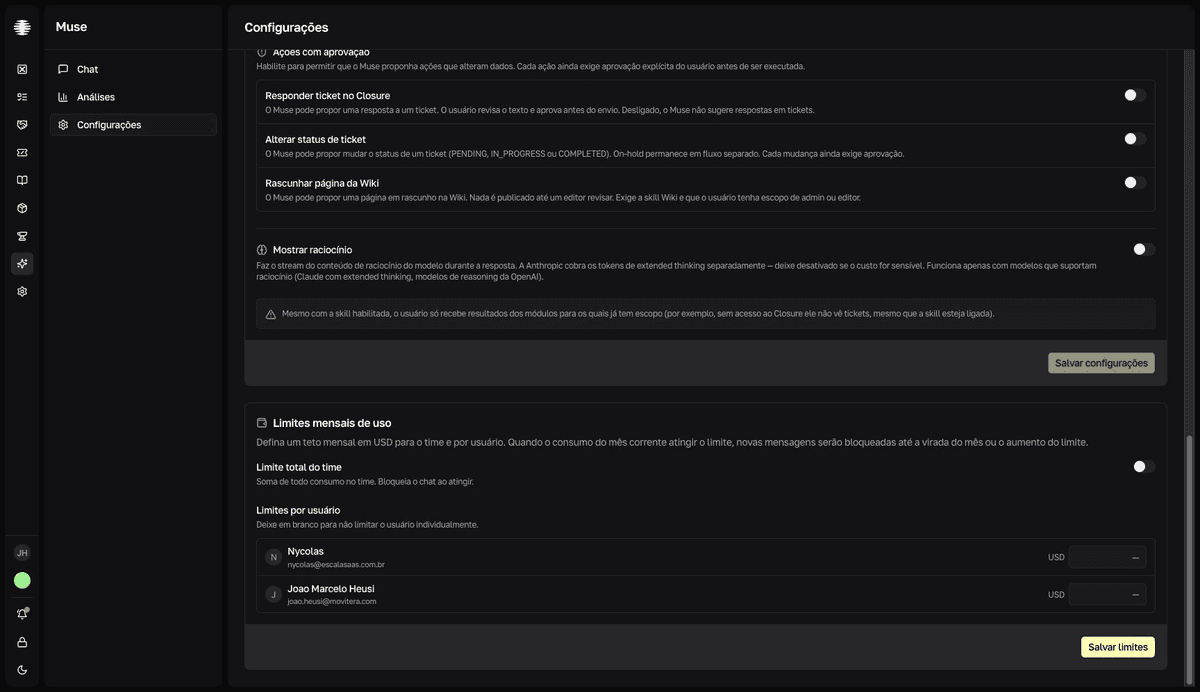
Choose which actions Muse can propose: replying to a ticket, changing a ticket's status, or drafting a Wiki page. Nothing runs without the explicit approval of whoever is in the conversation.
Turn on the actions
- 1
Open `Settings` in Muse and find `Skills do Muse` (Muse skills).
The
Ações com aprovação(Approval-based actions) section sits belowMódulos disponíveis(Available modules). Only Muse administrators see this screen. - 2
Turn on the actions the team can use.
Responder ticket no Closure(Reply to a ticket in Closure),Alterar status de ticket(Change ticket status), andRascunhar página da Wiki(Draft a Wiki page). With the switch off, Muse never even suggests the action. - 3
Click `Salvar configurações` (Save settings).
resultThe `Configurações atualizadas` (Settings updated) confirmation appears. In upcoming conversations, Muse can propose the enabled actions.
What each action requires
| Action | What Muse proposes | Prerequisites |
|---|---|---|
Responder ticket no Closure | A complete reply to a ticket. The user reviews the text and approves before it's sent. | Approval in the conversation. |
Alterar status de ticket | Moving a ticket between Pendente (Pending), Em progresso (In progress), and Concluído (Completed). Em espera (On hold) is excluded — it follows Closure's own flow. | Approval in the conversation. |
Rascunhar página da Wiki | A draft page. Nothing is published until an editor reviews it in the Wiki. | Wiki skill enabled and a user with administrator or editor scope in the Wiki. |
Approval is always required
Turning an action on doesn't let Muse run anything by itself. Every proposal appears as a card in the conversation, waits for the user's decision, and expires if no one decides.