Track usage
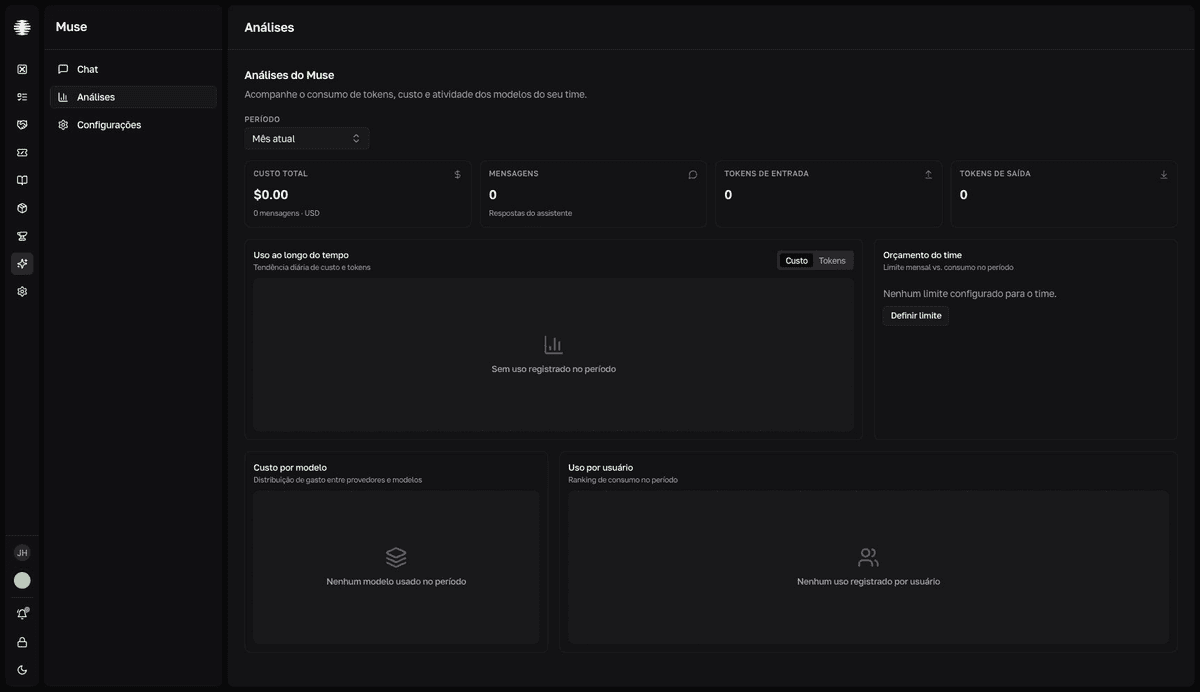
Use Analytics to track the team's token consumption, cost, and model activity. All values are in US dollars (USD), billed by the AI provider to the team's own account.
Read the panels
- 1
Open `Analytics` in Muse.
Only Muse administrators can access this screen.
- 2
Adjust the `Período` (Period).
Presets:
Mês atual(Current month),Últimos 7 dias(Last 7 days),Últimos 30 dias(Last 30 days),Últimos 3 meses(Last 3 months), andPersonalizado(Custom) — the last one opens theIntervalo(Range) control to pick the dates. - 3
Check the top indicators.
Custo total(Total cost),Mensagens(Messages),Tokens de entrada(Input tokens), andTokens de saída(Output tokens) summarize the filtered period. - 4
Compare the panels.
result`Uso ao longo do tempo` (Usage over time, with `Custo` and `Tokens` tabs), `Custo por modelo` (Cost by model), and `Uso por usuário` (Usage by user) show the daily trend and who concentrates consumption.
Usage by user
The table lists Usuário (User), Mensagens (Messages), Tokens, Custo (Cost), and Limite mensal (Monthly limit). The Limite mensal column shows Sem limite (No limit) or the user's progress bar against the cap set in the monthly limits — use it to spot who is close to being blocked.
Team budget
`Orçamento do time` (Team budget) compares different periods
The panel compares the monthly limit with the consumption of the filtered period. With Últimos 3 meses (Last 3 months), the bar can go past 100% without the chat being blocked — blocking considers only the current month. For a faithful reading, use Mês atual (Current month).
When to act
- Raise the limits when the team hits the cap before the end of the month.
- Review the enabled skills if many answers run queries with no need — each tool call costs an extra round of inference.
- Prefer cheaper models when the type of question doesn't require the provider's most expensive model.
- Remember: this cost is billed by the AI provider, in USD — it doesn't appear on the Movitera® invoice.