Generate a strong password
Create a strong password when registering or changing a credential, instead of making up a weak one. Generation happens in your browser — "Geração local · Nada é enviado" (local generation · nothing is sent).
Generate and copy
- 1
Open `Password generator` in the Vault sidebar.
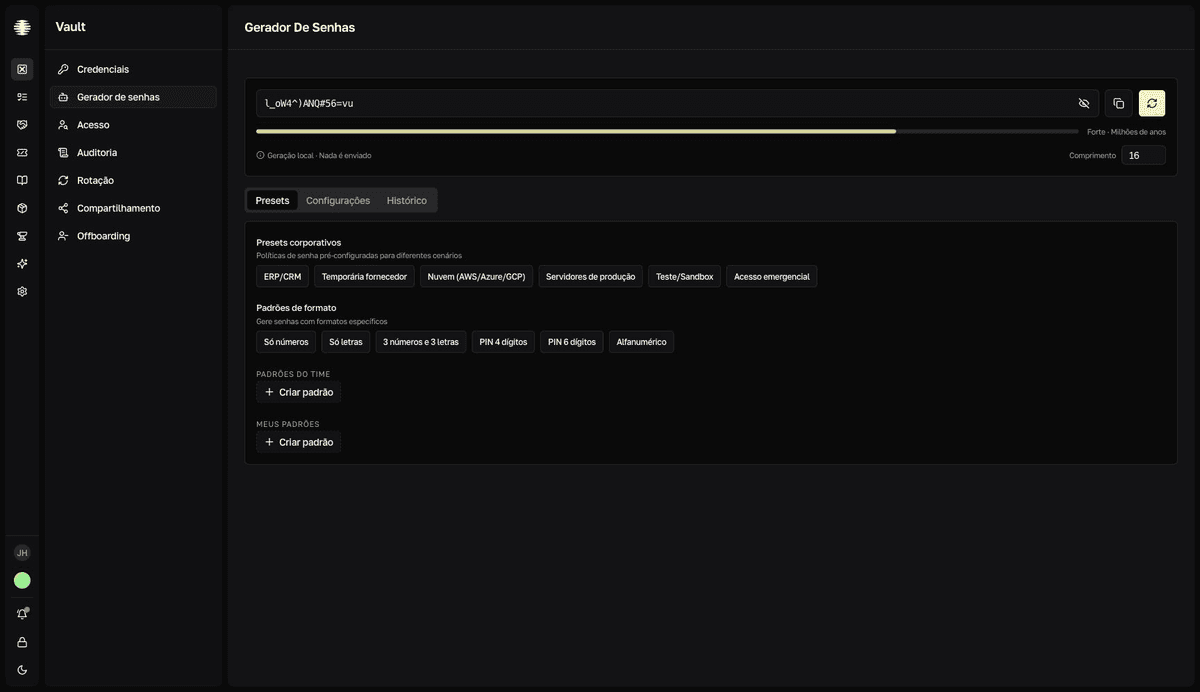
The main card shows the password, the strength bar (from
Muito FracatoMuito Forte— very weak to very strong — with the estimated time to crack), and theComprimento(length) field (4 to 64). - 2
Generate a new password with the generate button or `Ctrl`/`⌘`+`G`.
Each click generates another password with the same rules.
- 3
Copy it with the copy button or `Ctrl`/`⌘`+`C`.
resultToast "Senha copiada" (password copied) — paste the value into the credential's field.
Use a preset or a pattern
The Presets tab brings ready-made policies so you don't decide length and symbols every time:
Presets corporativos(corporate presets) — common scenarios:ERP/CRM,Temporária fornecedor(temporary vendor),Nuvem (AWS/Azure/GCP)(cloud),Servidores de produção(production servers),Teste/Sandbox, andAcesso emergencial(emergency access).Padrões de formato(format patterns) — fixed formats:Só números(numbers only),Só letras(letters only),3 números e 3 letras(3 numbers and 3 letters),PIN 4 dígitosandPIN 6 dígitos(4- and 6-digit PINs), andAlfanumérico(alphanumeric).Padrões do time(team patterns) andMeus padrões(my patterns) — formats your team created; see Create team password patterns.
With a pattern selected, the Configurações (settings) tab is disabled — generation follows the pattern. Click Limpar seleção (clear selection) to go back to standard generation.
Fine-tune in Configurações (settings)
Comprimento(length) and the character types:Maiúsculas (A-Z)(uppercase),Minúsculas (a-z)(lowercase),Números (0-9)(numbers),Símbolos (!@#$...)(symbols). Turn symbols off when the target system doesn't accept them — at least one type must stay on.Excluir ambíguos(exclude ambiguous) — removes characters that are easy to confuse, such as 0, O, 1, l, and I. Useful for passwords someone will type by hand.Excluir caracteres(exclude characters) — a specific list of characters to avoid.Agrupar caracteres(group characters) — splits the password into blocks with a delimiter, likexxxx-xxxx.Usar passphrase(use passphrase) — generates a phrase of English words instead of characters: choose the number of words (2 to 8), the separator, and whether numbers and symbols are included.
Recent history
The Histórico (history) tab keeps the last 5 generated passwords, each with a copy button and a countdown ("Expira em 60s" — expires in 60s). After 60 seconds the password disappears — nothing is saved on the server. If you generated a good one, copy it and save it in a credential before it expires.