Save a credential
Store a secret in Vault for your team to find and reuse, instead of sending the password over chat.
Create the credential
- 1
Open `Credentials` in the Vault sidebar and click `Criar nova` (Create new).
The
Criar nova credencial(Create new credential) dialog opens. It is also in the command menu (⌘K→Nova credencial), from any Vault screen. - 2
Choose the `Tipo de credencial` (credential type): `Login`, `Env`, or `Nota`.
Loginis the default. The description below the selector changes with the type. See the list of types further down if you're unsure. - 3
Fill in the `Nome` (name) — and the `URL`, for a `Login`.
Give it a name the team will recognize; the minimum is 3 characters. The
URLmust be complete, withhttps://— "exemplo.com" fails with "Insira uma URL válida" (enter a valid URL). - 4
Add `Tags` to make future searches easier.
Type and press Enter. The field suggests tags the team already uses.
- 5
Select `Grupos` (groups) if you want to share.
Each selected group can then see the credential. With no group, it stays
Privada(private) — only you see it. You can change this later; see Share a credential. - 6
Fill in the fields under `Campos` (fields) or paste a `.env`.
In the
Camposview, clickAdicionar campo(Add field) and fill in a key and a value per row. In the.envview, paste variables asKEY=value, one per line — each line becomes a field. For theEnvtype, the.envview is the only one. - 7
Click `Criar credencial` (Create credential).
The
⌘/Ctrl+Entershortcut also submits.resultToast "Credencial criada com sucesso." (credential created) — the credential appears in the Credentials list.
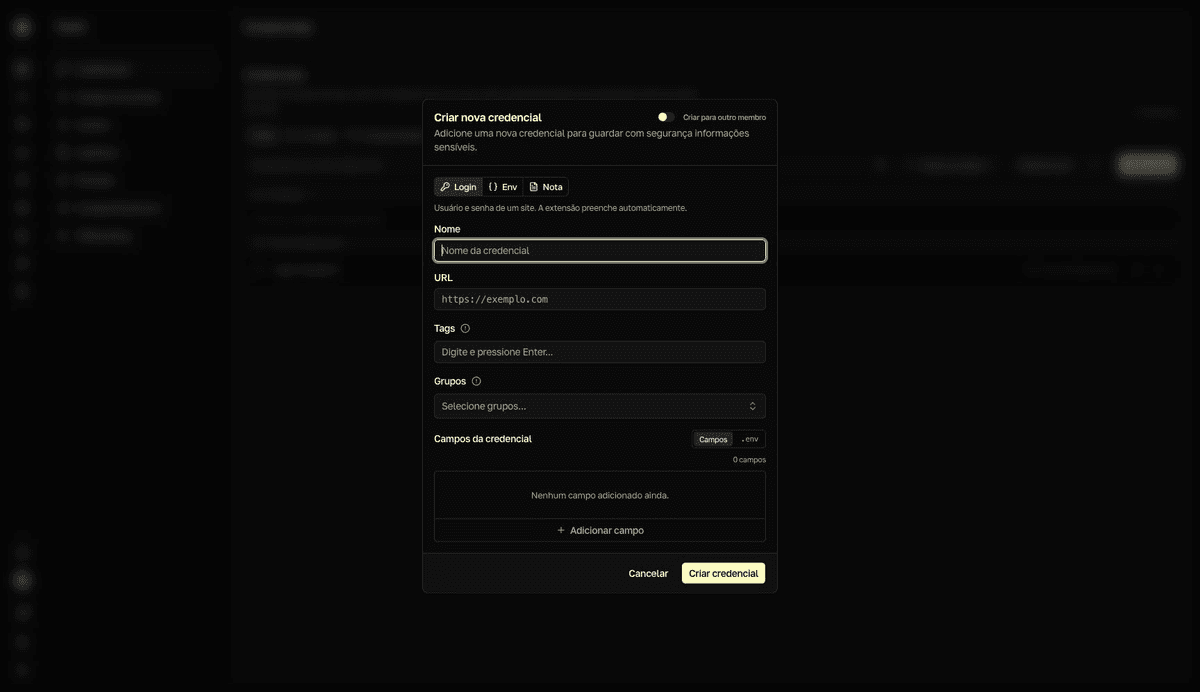
If you close the dialog with unsaved changes, Vault asks "Descartar alterações?" (discard changes?) before discarding.
Choose the right type
Login— a site's username and password. The extension fills it automatically.Env— a set of environment variables for the CLI to inject.Nota— notes, API keys, any key/value pair.
Create for another member (managers)
Vault managers see the Criar para outro membro (Create for another member) toggle at the top of the dialog. With it on, the Criar para (Create for) combobox lets you pick a member with Vault access — useful for handing someone a ready-made credential.
The credential goes to the other person's vault
Whoever you select in Criar para becomes the owner. The credential is born in that person's private vault and you stop seeing it, unless it joins one of your groups. It is not a share — it is a transfer of ownership.