TASKGuide
Track spend
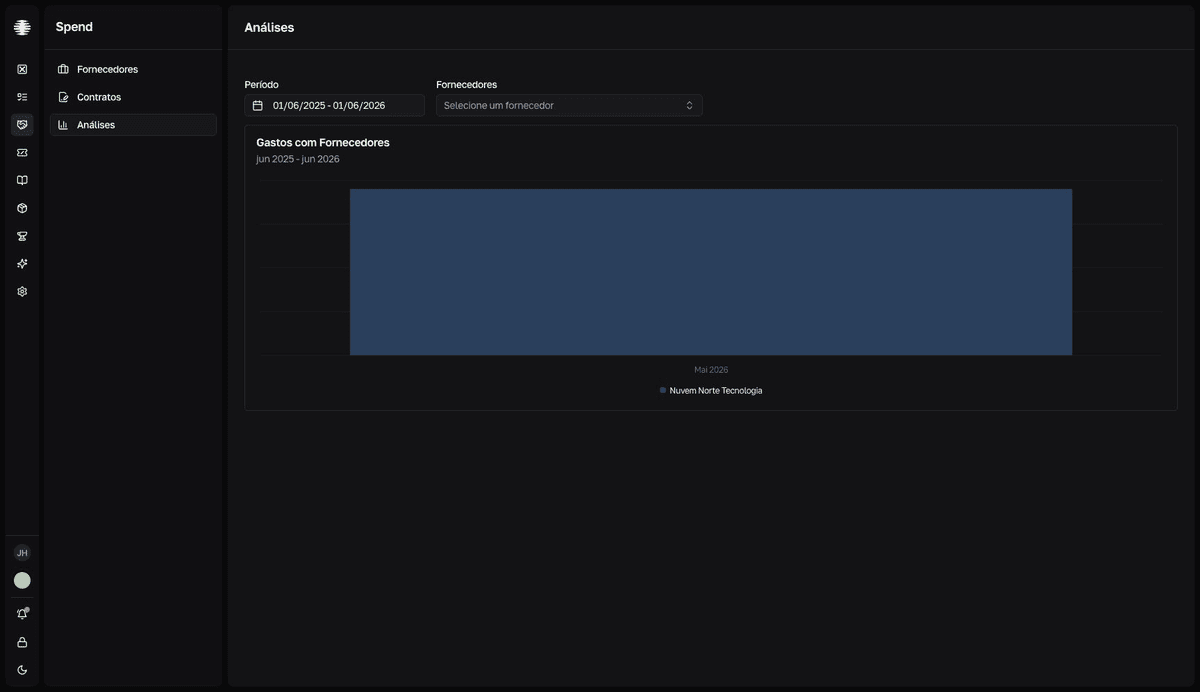
Use Analytics to see how much the team spends with each supplier, month by month, based on the invoices you record.
Filter the chart
- 1
Open `Analytics` in SRM.
The
Gastos com Fornecedores(supplier spend) chart loads with the last 12 months. - 2
Adjust the `Período` (period) to the range you want to compare.
The picker opens a two-month calendar; choose the start and end dates.
- 3
Select suppliers in the `Fornecedores` (suppliers) filter when you want to compare a subset.
With nothing selected, the chart shows all suppliers. Selected suppliers appear as removable tags.
resultThe chart recalculates the stacked bars per supplier and per month.
How to read it
- Each bar is a month; each color, a supplier. Hover to see the value per supplier.
- The chart adds up invoices only — contract values are not included. If a supplier looks like zero, record its invoices.
- Compare months to find renewals and charges outside the pattern.
Chart limits
- A team with no invoices sees a blank chart with only the axes — that is not an error.
- With more than 20 suppliers selected, some bars may not appear. Reduce the selection to compare.
- The month names in the
Períodopicker appear in English in the current version.