Track invoices
Record each supplier's invoices to feed the Calendário de faturas (invoice calendar) and the Analytics chart.
Create an invoice
- 1
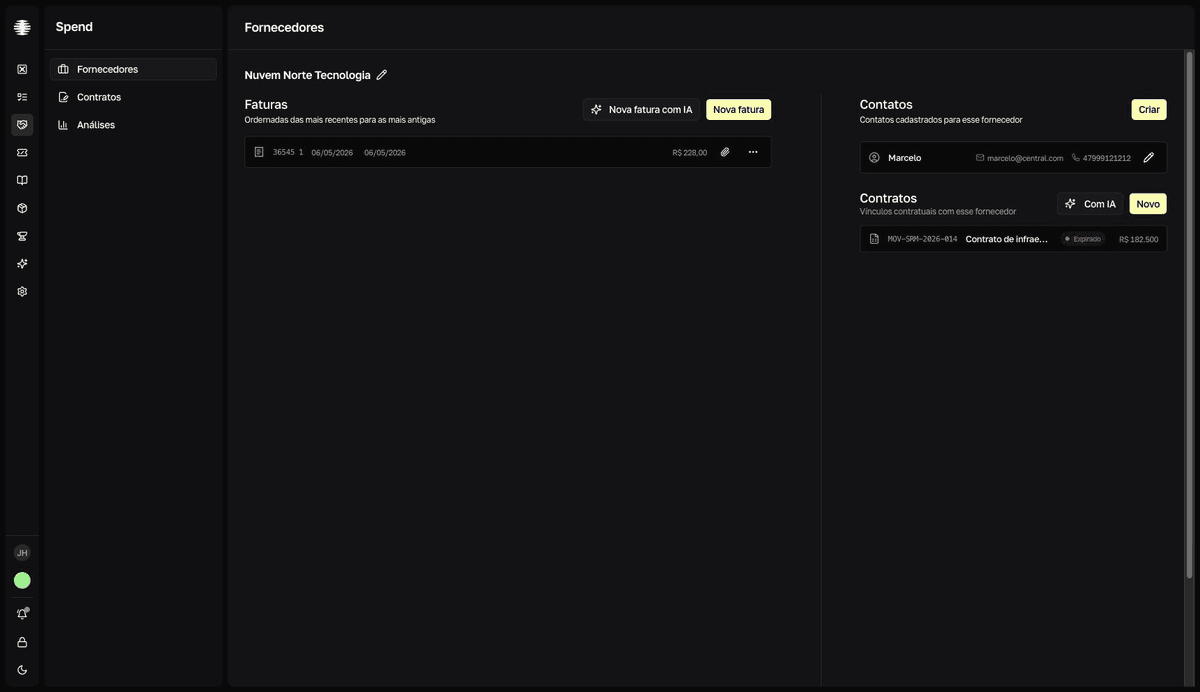
Open the supplier and click `Nova fatura` (New invoice).
Shortcut: in the
Meus fornecedores(my suppliers) list, the receipt-icon button next to each row opens the same dialog without opening the supplier page. - 2
Fill in `Identificador/numero da fatura` (invoice identifier/number), `Data de emissão` (issue date), `Data de vencimento da fatura` (invoice due date), and `Valor da fatura` (invoice value).
Both dates come pre-filled with today.
- 3
Click `Criar fatura` (Create invoice).
resultMessage: Nota fiscal criada com sucesso (invoice created). The invoice joins the supplier's list.
Fatura and nota fiscal are the same record
The interface calls the record a fatura (invoice), but the confirmation messages say nota fiscal. It is the same data.
Edit or delete an invoice
- 1
Click the `…` button on the invoice row.
The menu shows
Editar(Edit) andExcluir(Delete). - 2
To fix data, click `Editar`, adjust the fields, and click `Salvar` (Save).
resultMessage: Nota fiscal atualizada com sucesso (invoice updated). - 3
To delete, click `Excluir` and confirm with `Deletar fatura` (Delete invoice).
resultMessage: Nota fiscal excluída com sucesso (invoice deleted). The invoice leaves the list.
Deletion is final
As the confirmation warns, the action cannot be undone and all of the invoice's data will be lost.
Attach files to the invoice
- 1
Click the paperclip button (`Anexos`) on the invoice row.
The
Anexos(attachments) panel expands below the row. - 2
Click `Adicionar arquivo` (Add file) and select the file.
It accepts PDF, images, documents, spreadsheets, JSON, and XML.
resultMessage: Arquivo enviado com sucesso (file uploaded). The file appears in the Anexos panel. - 3
To download an attachment, click the `Baixar arquivo` (Download file) icon on its row.
Invoice attachments cannot be deleted
Once uploaded, the file stays on the invoice permanently — check it before uploading. Contract attachments, by contrast, can be deleted.
Browse the list
The list shows the most recent invoices first, 10 per page — use the pagination at the end of the list. To record from a PDF or image, see Create an invoice with AI.