Create contracts
Create a contract to track the term, renewal, value, and owner of each supplier agreement.
Create the contract
The Contracts screen only appears for members whose Acesso ao SRM (SRM access) is set to Usuário (user) or Gerenciador (manager) — see Control who can access contracts. The supplier must be registered first.
- 1
Open `Contracts` in SRM and click `Novo contrato` (New contract).
To create from a PDF, use
Novo com IA(New with AI) — see Create a contract with AI. - 2
Fill in `Título` (title) and select `Fornecedor` (supplier) and `Responsável` (owner).
The
Responsávelsearch lists only active members with SRM access. If it showsNenhum membro com acesso ao SRM.(no member with SRM access), adjust the permissions first. - 3
Choose `Tipo` (type) and `Status`.
Types:
Serviço(service),Software,Hardware,Manutenção(maintenance),Suporte(support),NDA, andOutro(other). TheStatusstarts asAtivo(active) — see Contract status and lifecycle. - 4
Enter `Data de início` (start date), `Data de término` (end date), `Valor` (value), and `Moeda` (currency).
The
Data de términomust be after the start date.Número do contrato(contract number),Data de renovação(renewal date), andObservações(notes) are optional. - 5
Click `Criar contrato` (Create contract).
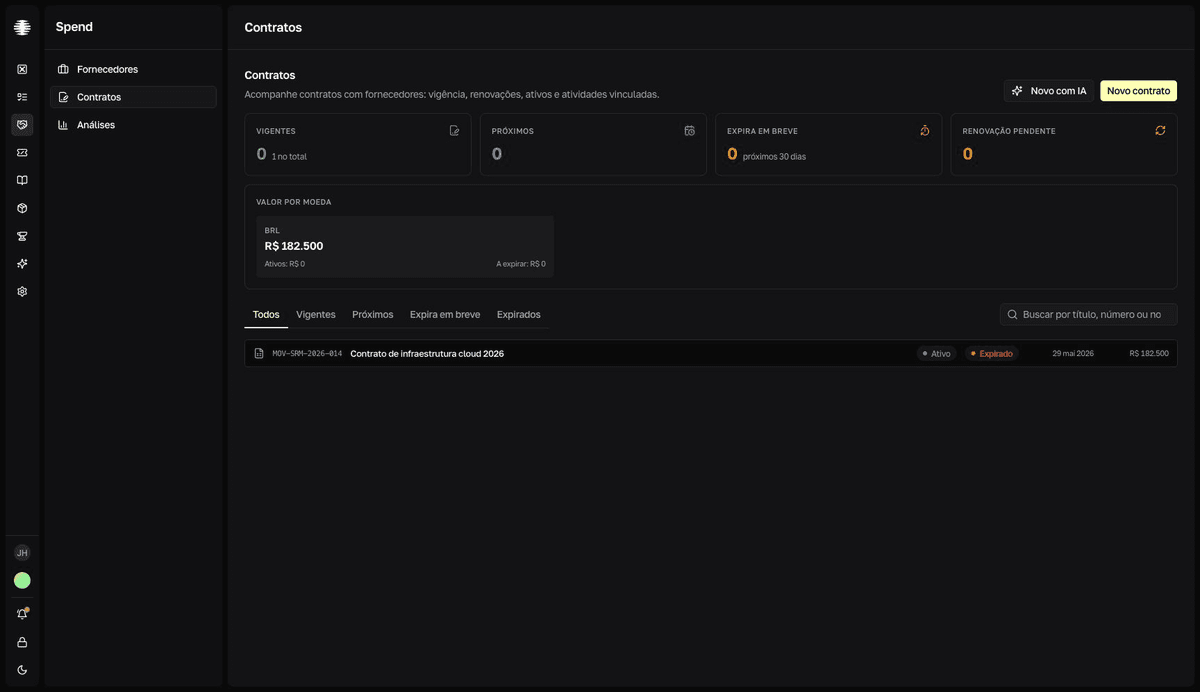
resultMessage: Contrato criado com sucesso (contract created). The contract joins the list with its status and lifecycle badges.
Find contracts in the list
The Todos (all), Vigentes (active), Próximos (upcoming), Expira em breve (expiring soon), and Expirados (expired) tabs filter by lifecycle. The Buscar por título, número ou notas (search by title, number, or notes) field searches exactly that — the supplier name is not part of the search; to see a supplier's contracts, open the Contratos section on its page. The cards at the top summarize the portfolio — see Track terms and renewals.
Review the contract detail
Open a contract to see the Vigência (term) strip with the days remaining, the grid with Valor, Tipo, Status, Ciclo (lifecycle), Renovação (renewal), Renova auto. (auto-renew), Anexos (attachments), and Tags, and the Observações (notes) card when there are notes. Use Editar (Edit) to fix data — Renova auto. and Tags are read-only and have no field in the form.
The Impacto operacional (operational impact) card shows Ativos vinculados (linked assets), Atividades vinculadas (linked activities), and Outros contratos do fornecedor (other contracts from this supplier). Asset and activity links are managed in Inventory and Tasks — in SRM they are read-only.
In the Anexos card, use Adicionar arquivo (Add file) to upload the signed contract and its amendments, Baixar arquivo (Download file) to download, and Excluir arquivo (Delete file) to remove — removal asks for confirmation and cannot be undone.
Delete a contract
- 1
In the contract detail, click the `…` button and then `Excluir` (Delete).
The
Excluir contrato?(Delete contract?) dialog asks for confirmation. - 2
Confirm with `Excluir contrato` (Delete contract).
resultMessage: Contrato excluído com sucesso (contract deleted). You return to the contract list.
Attachments are archived with it
Deletion cannot be undone, and attached files are archived and stop appearing. Download any files you still need before deleting.