Track terms and renewals
The Contracts screen summarizes the portfolio: what is active, what expires in the next 30 days, and what has a pending renewal.
Read the dashboard
| Card | What it shows |
|---|---|
Vigentes (active) | Contracts within their term, with the team's total contract count right below. |
Próximos (upcoming) | Contracts with a start date in the future. |
Expira em breve (expiring soon) | Contracts ending in the next 30 days. The window is fixed. |
Renovação pendente (renewal pending) | Contracts whose Data de renovação (renewal date) has passed and that have not reached their end date yet. |
Valor por moeda (value by currency) | Total per currency (BRL and USD), with the Ativos: (active) and A expirar: (expiring) amounts. |
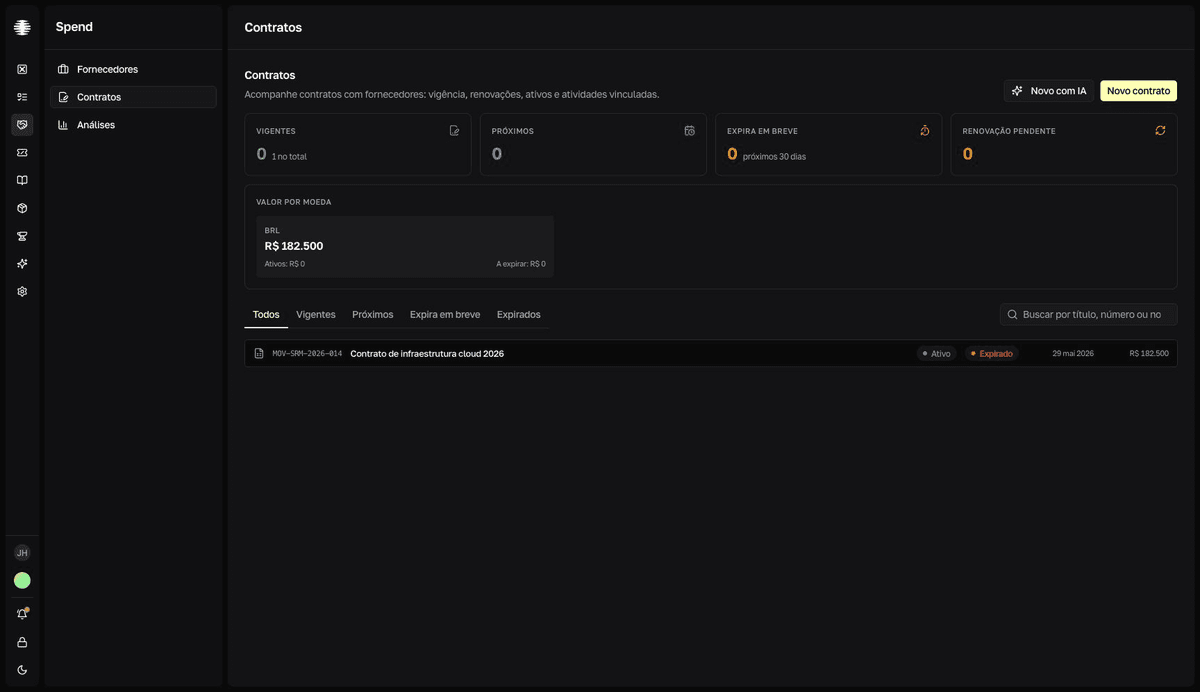
Filter what needs action
Use the Expira em breve and Expirados (expired) tabs to list the contracts that demand a decision now. The lifecycle is calculated from the term dates — see Contract status and lifecycle. Contracts with the Renovação pendente badge get an amber highlight in the list.
Watch a contract closely
In the contract detail, the Vigência (term) strip connects the start date to the end date and shows how many days remain — or how many days ago the contract ended. The bar turns amber when 30 days or fewer remain and red after the end date.
Record a renewal
- 1
Open the contract and click `Editar` (Edit).
The
Editar contrato(Edit contract) dialog opens with the current data. - 2
Update `Data de início` (start date) and `Data de término` (end date) to the new period.
Also adjust
Data de renovação(renewal date) andValor(value) if the agreement changed. - 3
Click `Salvar` (Save).
resultMessage: Contrato atualizado com sucesso (contract updated). The lifecycle badges are recalculated with the new dates.
To preserve the old agreement's history, another option is to set the current contract's Status to Renovado (renewed) and create a new contract for the new period. The Renova auto. (auto-renew) field in the detail is read-only and does not replace this record.