Create a contract with AI
Use AI extraction when you already have the contract as a PDF and want to fill in the record without typing field by field.
Extract the data
- 1
Open `Contracts` and click `Novo com IA` (New with AI).
On the
Contractsscreen, choose theFornecedor(supplier) in the dialog. On a supplier's page, theCom IA(With AI) button comes with the supplier already set. - 2
Drag the contract PDFs into the upload area or click to select.
This flow accepts PDF only, up to 20 MB per file.
- 3
Click `Extrair dados` (Extract data).
The button changes to
Extraindo...(extracting) and the dialog stays locked until the extraction finishes.resultThe Contrato criado com sucesso (contract created) screen shows the extracted fields and a confidence badge. - 4
Review `Título` (title), `Número` (number), `Tipo` (type), `Início` (start), `Término` (end), `Renovação` (renewal), `Valor` (value), and `Status`.
The badge reads
Alta confiança(high confidence),Média confiança(medium), orBaixa confiança(low).Valor não identificado(value not identified) means the AI could not read the value — enter it when editing. - 5
Click `Abrir contrato` (Open contract) to see the detail or `Editar` (Edit) to fix fields.
resultThe contract is saved in the Contracts list, ready to track.
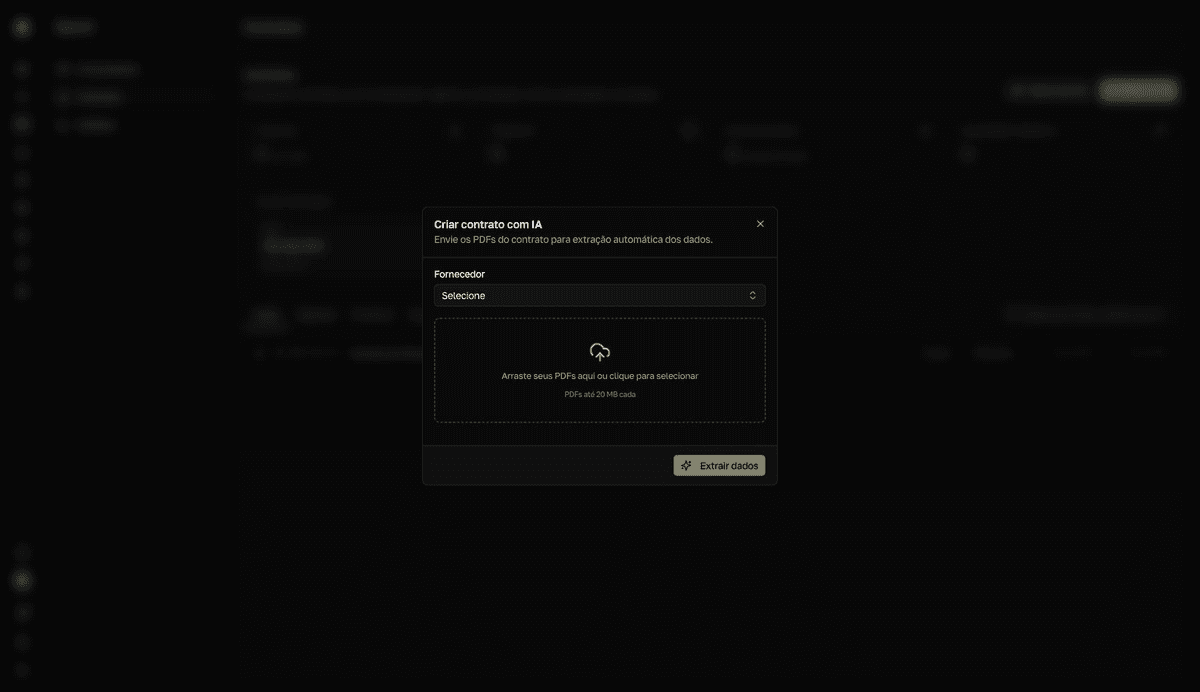
Extrair dados saves the contract
The contract is saved the moment you click Extrair dados. Fechar (Close) does not discard the record — to fix it, use Editar; to remove it, delete the contract from its detail page.
When to review more carefully
- The PDF mixes the contract, the proposal, and amendments.
- The value appears in more than one currency.
- The renewal date is described in running text, without a clear clause.
- The confidence badge is not
Alta confiança(high confidence).