Create and manage spaces
A space groups the pages of a team, area, or project. Creating and managing spaces is a job for the Administrador (Administrator) role in the Wiki — see Wiki access roles.
Create a space
- 1
Open `Configurações` (Settings), at the bottom of the Wiki sidebar.
The
Configurações da Wiki(Wiki settings) screen opens on theEspaços(Spaces) tab. Shortcuts: the+button next toESPAÇOSin the sidebar and theNovo espaço(New space) command in the command palette also create a space. - 2
Click `+ Novo espaço` (New space).
A form appears with the
Nome do espaço(Space name) andDescrição (opcional)(Description, optional) fields. Use a clear name — for example, Operations, Onboarding, or a project name. - 3
Fill in the name and click `Criar` (Create).
resultThe space appears in the list and in the sidebar's ESPAÇOS section, visible to everyone with Wiki access.
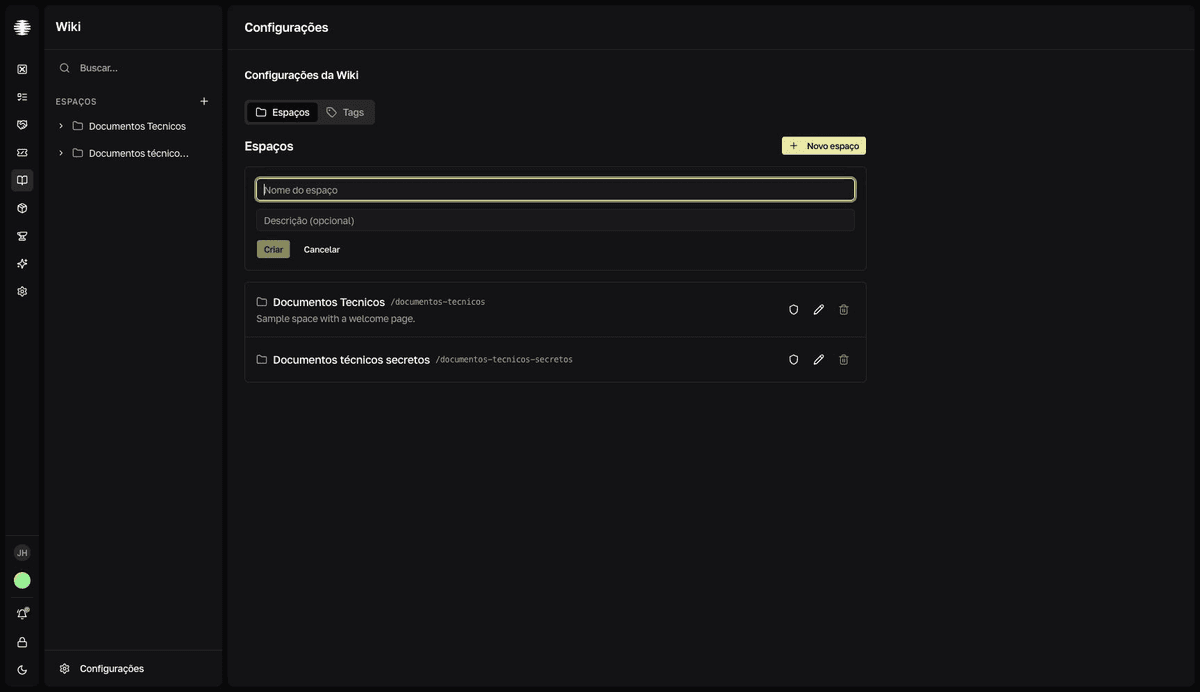
Permissions are not part of creation: the space starts open to the whole team. To restrict it later, use the shield icon (Permissões) in the space list — see Restrict spaces, folders, and pages.
Edit name, slug, and description
- 1
In `Configurações da Wiki` → `Espaços`, click the space's pencil icon.
The name, slug, and description fields become editable in the row itself.
- 2
Adjust the fields and click `Salvar` (Save).
resultThe list shows the space's new details.
Editing the slug changes every address in the space
The slug is the space's segment in page addresses. When you edit it, links already shared to any page in the space stop working.
Delete a space
- 1
Click the space's trash icon and confirm with `Excluir` (Delete).
The
Excluir espaço(Delete space) confirmation warns that all pages will be removed.
Deletion is permanent
Deleting a space removes all of its folders and pages — there is no undo in the interface. To preserve content, move the pages to another space first — see Move and reorder pages and folders.