Restrict spaces, folders, and pages
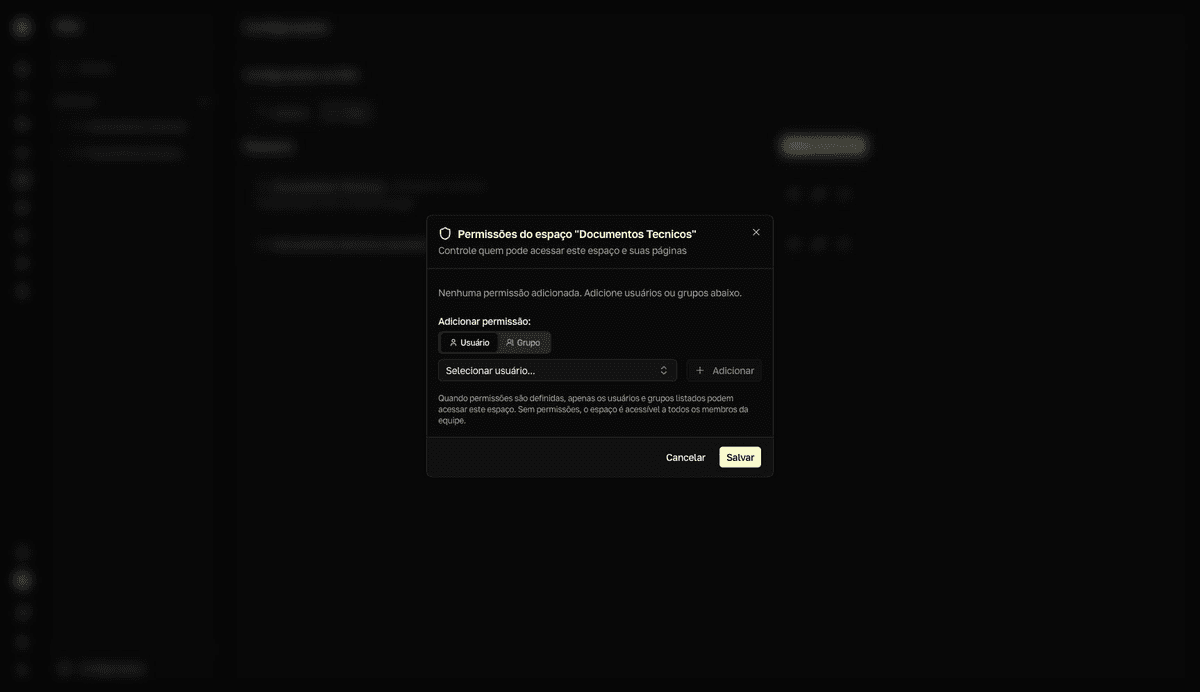
Without restrictions, all content is visible to anyone with Wiki access. Restricting limits access to the people and groups on the list — plus the Wiki administrators. Setting restrictions is a job for the Administrador (Administrator) role.
Where to restrict
| Content | Path |
|---|---|
| Space | Configurações da Wiki (Wiki settings) → Espaços (Spaces) tab → shield icon (Permissões, Permissions) |
| Folder | Permissões button on the folder's page, or ⋯ → Permissões in the sidebar tree |
| Page | The page's ⋯ menu → Permissões |
In the folder and page dialogs, turn on Restringir acesso a usuários específicos (Restrict access to specific users) to enable the restriction.
Build the access list
- 1
Under `Adicionar permissão:` (Add permission), choose the `Usuário` (User) or `Grupo` (Group) tab.
Groups come from the team's groups.
- 2
Select the person or group and click `Adicionar` (Add).
- 3
Set each entry's level: `Pode ver` (Can view) or `Pode editar` (Can edit).
Pode verallows reading;Pode editarallows creating and changing. The trash icon removes an entry from the list. - 4
Click `Salvar` (Save).
resultOnly the people on the list — and the Wiki administrators — keep seeing the content. For everyone else, it disappears from listings, the tree, and search.
How restrictions combine
The Wiki resolves access by following the Space → Folder → Page hierarchy: the most specific level that has its own permission list wins. If a level has no restrictions set, it is transparent and inherits from the level above.
- **A restricted folder hides its entire contents**: anyone not on the folder's list can't see any of its subfolders or pages — even if the space is open.
- **A more specific permission refines the broader one**: you can restrict a single page in an open space, or grant
Pode editar(Can edit) on a folder to someone who only reads the rest of the space — even aVisualizador(Viewer). - **A folder with no restrictions is transparent**: if a folder has no permission list, access to it matches the space (or the nearest parent folder that has permissions).
- Someone who loses access doesn't see a permission warning: the content disappears from lists, and a direct link shows
Página indisponível(Page unavailable) — the Wiki doesn't confirm it exists. - In the permission list, you only see the names of groups you belong to; entries for other groups keep applying, even without appearing to you.
Check the current state
The Visibilidade do espaço (Space visibility) card, at the bottom of the space's page, and the Visibilidade desta pasta (This folder's visibility) card show whether there is a restriction and who is on the list. Each page displays a compact row with the space's visibility, and a lock next to the name indicates a restriction of its own.
Restrictions take effect immediately
Anyone with the content open loses access right away — even mid-edit, and text typed after that is not saved. Warn the team before restricting areas in use.