TASKGuide
View and restore revisions
The history keeps a page's saved versions. Revisions are created on full saves — Concluir (Done) or Cmd/Ctrl+S — not by autosave.
Check the history
- 1
Open the page and click the `Histórico` (History) icon, next to the title.
The
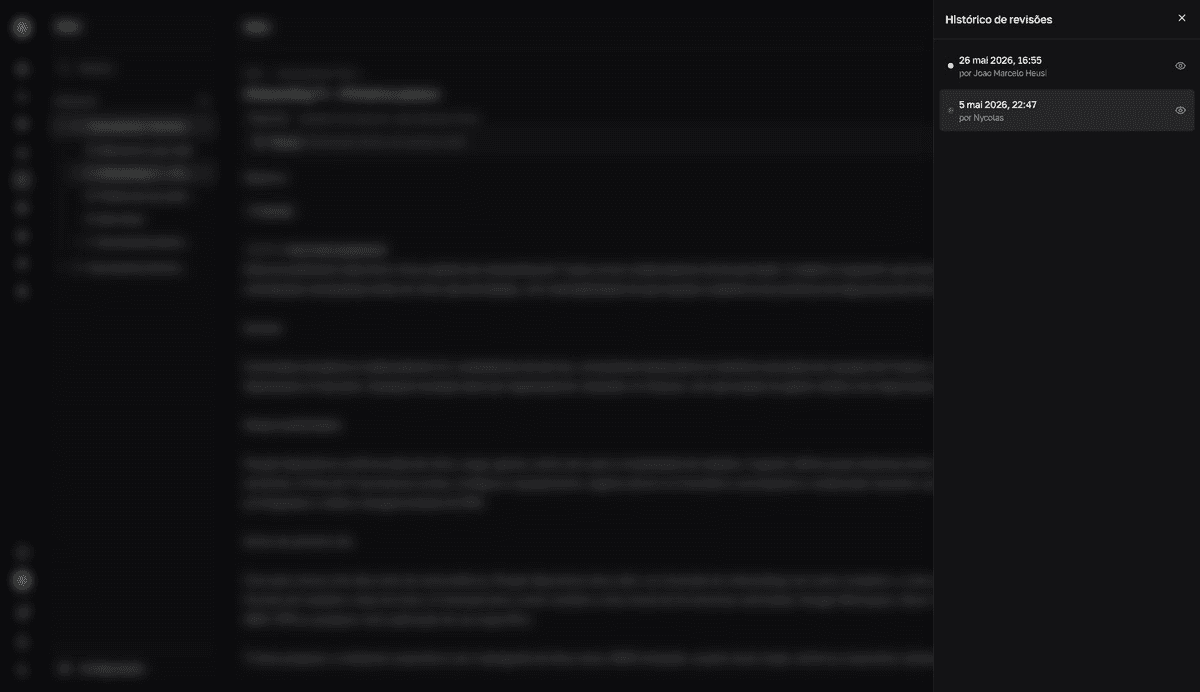
Histórico de revisões(Revision history) panel opens on the right, with versions from newest to oldest — each with its date and author. Anyone with access to the page can check the history. - 2
Click a revision to view it.
The
Visualizar revisão(View revision) screen shows that version's full content. There is no side-by-side comparison between versions.
Restore an earlier version
- 1
In the revision view, click `Restaurar esta versão` (Restore this version).
The button appears for anyone who can edit the page and is hidden on the most recent revision.
resultThe title and content return to the chosen revision's. Tags and status don't change.
Want more restore points?
Save with Concluir or Cmd/Ctrl+S at the important stages of a long edit. Each full save becomes a revision; what only went through autosave doesn't.