Audit images and storage
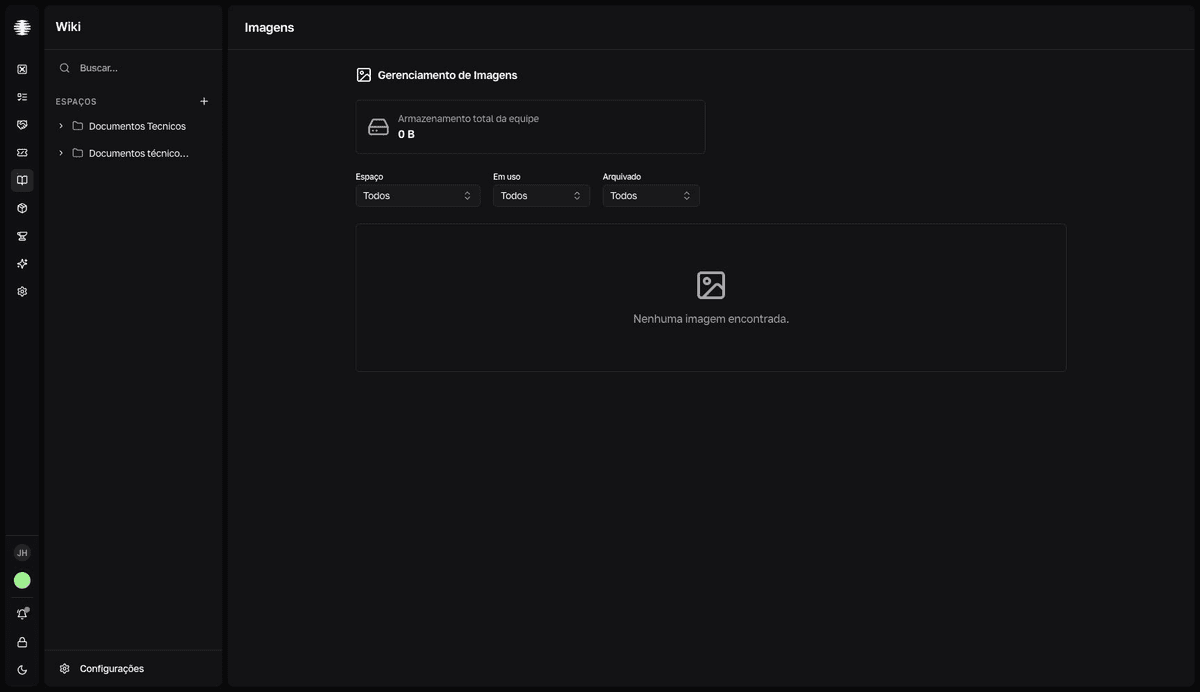
The Imagens (Images) screen shows how much storage page images take up and the state of each file. It's visible to the Administrador (Administrator) role. Images enter the Wiki through the page editor — pasted or dragged into the text — not here.
Check storage usage
- 1
Open the Wiki's `Imagens` (Images) screen.
With the Wiki open, use the
Ir para Imagens(Go to Images) command in the command palette; on mobile,Imagensappears in the Wiki navigation. TheGerenciamento de Imagens(Image management) screen opens with theArmazenamento total da equipe(Total team storage) card; when you filter by space,Armazenamento do espaço(Space storage) appears as well. - 2
Filter the table.
Three filters:
Espaço(Space),Em uso(In use) — optionsEm uso/Não utilizado(Unused) — andArquivado(Archived) — optionsArquivado/Ativo(Active). The table lists each image's file, type, size, usage, and status.
Mark what's in use
The eye button on each row toggles the file's Em uso (In use) flag. Use it to flag images that no longer appear on any page and can be cleaned up later.
What this screen doesn't do
- It doesn't upload images — insert them through the page editor, by pasting or dragging the file. See Write and publish a page.
- It doesn't insert images on pages or delete files.