Create an issue
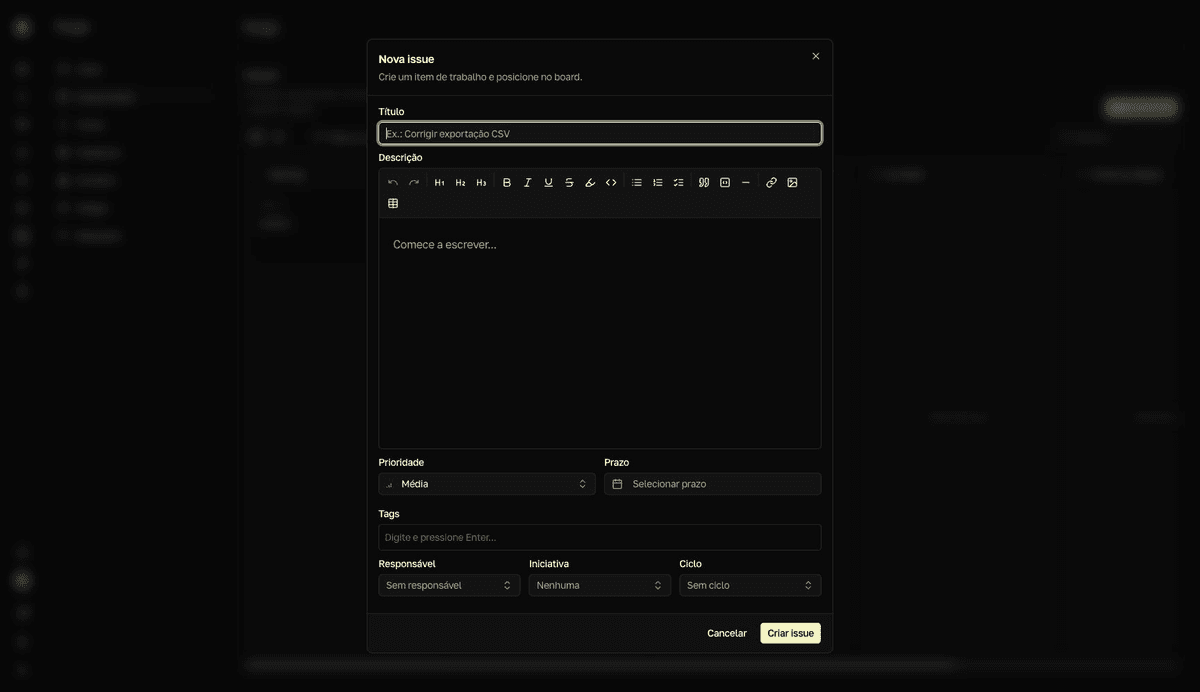
Log a unit of work for the team to track from start to delivery. The issue is born in the Backlog status and, by default, inside the active cycle.
Create the issue
- 1
Click `Nova issue` (New issue) on the `Issues board`.
The button also lives in the command palette and on the
+of theBacklogcolumn. The “Nova issue” dialog opens. - 2
Give it a `Título` (Title) and write the `Descrição` (Description).
The description accepts Markdown. Images pasted or uploaded in the editor become issue attachments — that's how files get into an issue.
- 3
Classify with `Tipo` (Type), `Prioridade` (Priority), `Prazo` (Due date), and `Tags`.
Tipo:Bug,Funcionalidade(Feature, the default), orTarefa(Task).Prioridaderuns fromMuito baixa(Very low) toUrgente(Urgent), withMédia(Medium) as the default, and shows as an indicator on the card — it doesn't reorder the board on its own.Tagsautocomplete from the ones the team already uses. - 4
Set `Responsável` (Assignee), `Iniciativa` (Initiative), and `Ciclo` (Cycle).
The
Ciclofield comes pre-filled with the active cycle. ChooseSem ciclo(No cycle) to keep the issue out of the current plan.Iniciativais optional. - 5
Click `Criar issue` (Create issue).
resultThe issue starts as Backlog and appears on the Issues board, inside the chosen cycle.
Created the issue and it's not on the board?
The board filters by the active cycle by default. If you created the issue with Sem ciclo, switch the Ciclo filter to Sem ciclo or Todos os ciclos (All cycles) to see it.