Connect GitHub
Install the GitHub App so Forge syncs repositories, shows branches and PRs on issues, and — if the team wants — moves issues automatically when a PR merges. The connection is made by a Forge admin.
Install the GitHub App
- 1
Open `GitHub` in the Forge sidebar.
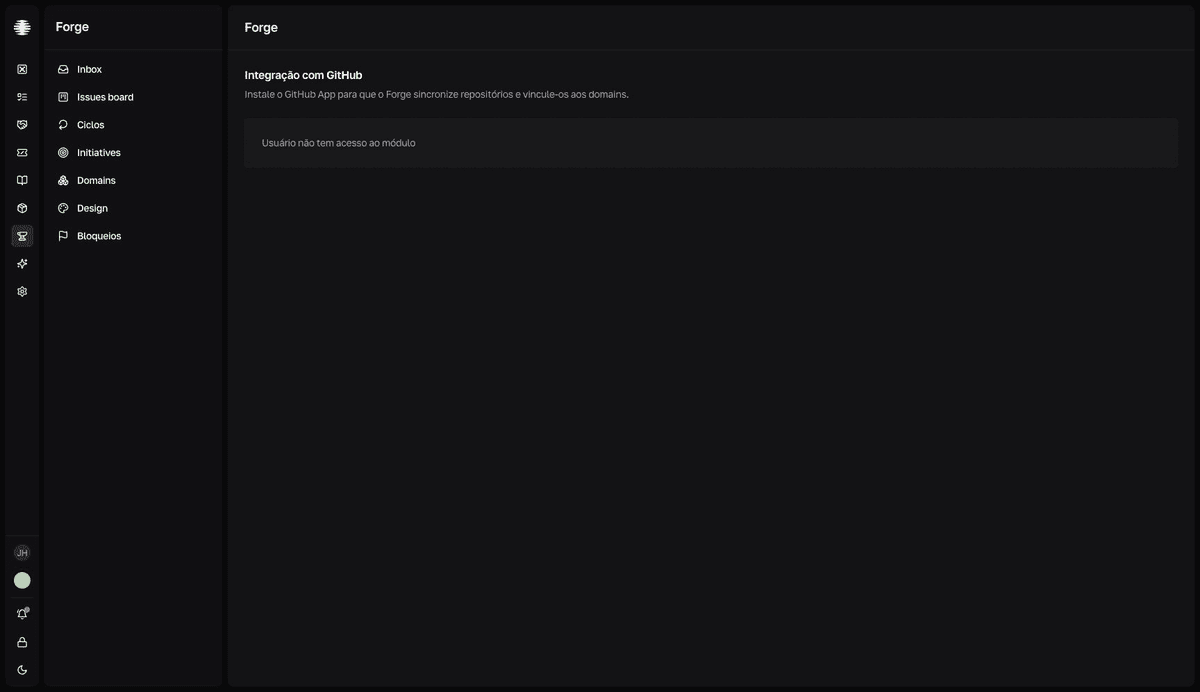
The item appears only for Forge admins. Non-admins see the notice “Peça a um administrador do Forge para conectar o GitHub.” (Ask a Forge admin to connect GitHub.)
- 2
Click `Conectar GitHub` (Connect GitHub).
You're taken to GitHub to install the app and choose the organization and the repositories it can access.
- 3
Return to Forge and wait.
The “Concluindo a conexão com o GitHub” (Finishing the GitHub connection) screen saves the installation and syncs the repositories.
resultThe “GitHub conectado ao Forge” (GitHub connected to Forge) confirmation appears and the integration page shows the account, the installation, and the “Última sincronização” (Last sync).
Finish in the same browser you started in
The connection keeps the team's context in your browser. Finishing the installation in another browser — or after clearing the site's data — raises the error “Não encontramos o time que iniciou a conexão. Volte ao Forge e tente novamente.” (We couldn't find the team that started the connection. Go back to Forge and try again.) Restart the connection from the integration page.
Keep the repositories up to date
Sincronizar repositórios(Sync repositories) refreshes the list when something changes on GitHub.Gerenciar instalação(Manage installation) reopens GitHub to add or remove repositories from the app.- The “Prévia dos repositórios” (Repositories preview) shows the first synced ones; the full list lives on the
Repositórios(Repositories) page.
Close issues when PRs merge
- 1
On the `Fechar issues ao mesclar PR` (Close issues on PR merge) card, turn on `Fechar issues quando o PR for mesclado` (Close issues when the PR is merged).
- 2
Choose the destination in `Mover issues mescladas para` (Move merged issues to).
Concluído(Completed) marks the issue as finished and sets the completion date.Pronto p/ deploy(Ready to deploy) keeps the issue merged, waiting for the deploy. - 3
Click `Salvar` (Save).
Saving requires two-factor authentication.
resultWhen a PR that references an issue merges, the issue moves to the chosen status automatically.
A different permission from the rest of Forge
Only team admins or team managers can change this setting — the team role, not the Forge role — and saving requires MFA. The screen itself says: “Por segurança, salvar estas alterações exige autenticação de dois fatores (MFA).” (For security, saving these changes requires two-factor authentication.)