Manage tickets on the board
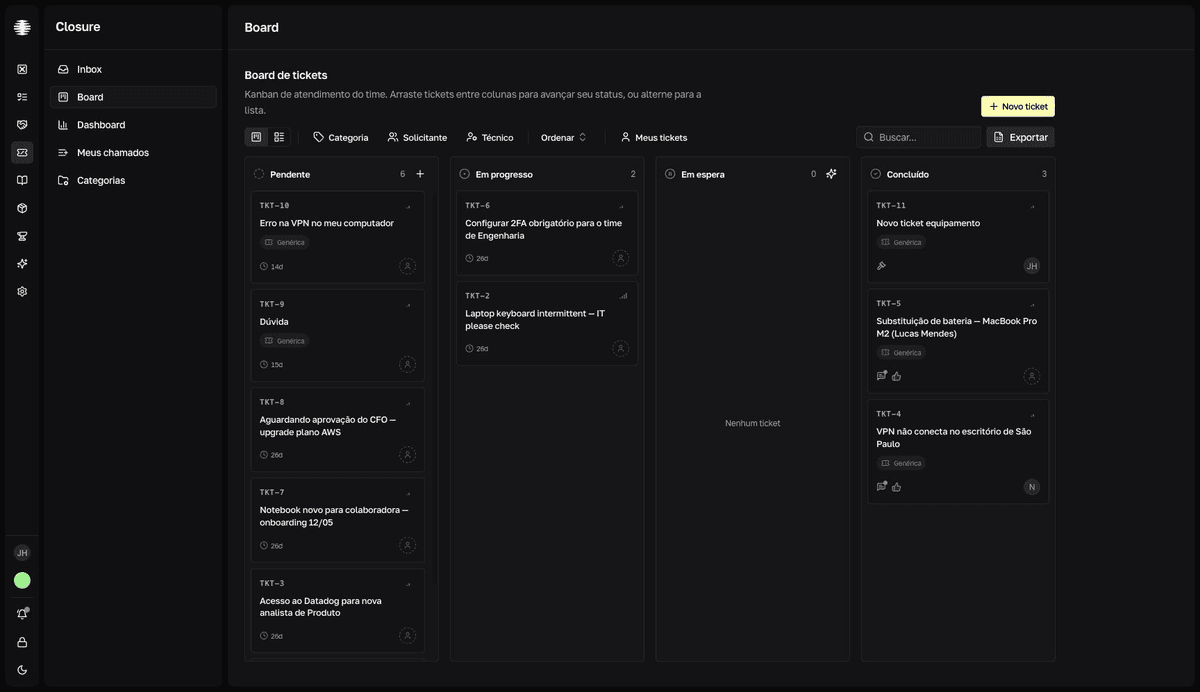
The Board de tickets (ticket board) is the team's kanban: four status columns, filters, and a list view. Dragging a card changes the ticket's status.
Move tickets between columns
- 1
Open `Board` in the Closure sidebar.
The columns are
Pendente(Pending),Em progresso(In progress),Em espera(On hold), andConcluído(Completed), with the ticket count in each one. - 2
Drag the card to the new column.
resultThe status changes on the spot and the toast Ticket movido para "..." (Ticket moved to "...") confirms it. The team sees the change immediately. - 3
Complete whatever the column requires.
Dropping on
Concluídoopens theSolução do ticket(Ticket solution) window; dropping onEm esperaopensColocar em Espera(Put on hold). Fill it in and save for the move to stick.
Cancelling the window cancels the move
If you close the solution or hold window without saving, the card returns to its original column — the status did not change.
Filter and find
Categoria(Category),Tipo(Type),Solicitante(Requester), andTécnico(Technician) filter every column; underTécnico, theSem técnico(No technician) option shows only the tickets with no assignee.Meus tickets(My tickets) is a shortcut to see the tickets assigned to you.Ordenar(Sort) reorders by title, creation, update, or priority.- The
Buscar...(Search) field searches the tickets' text. - The view switch toggles between the board and a paginated list — the preference resets to the board when you reload the page.
Read the card
Each card shows the code (TKT-42), the priority indicator — or a shield when severity is Alta severidade (High severity) or Altíssima severidade (Very high severity) —, the category, an unread-messages dot, and the assignee's avatar. Tickets whose SLA was exceeded show a SLA violado (SLA breached) badge. In the Concluído column, the thumbs-up marks an approved solution and the gavel a solution awaiting review.
Clicking the card opens the ticket in a panel on top of the board, and the page address starts to include the ticket — copy the URL from the browser to share it.
Export to CSV
- 1
Adjust the filters first.
The export respects the filters active on the board.
- 2
Click `Exportar` (Export).
In the
Exportar ticketswindow, chooseTodos os chamados(All tickets) orChamados em aberto(Open tickets).resultThe CSV file downloads and the toast "Tickets exportados com sucesso" (Tickets exported successfully) confirms it.