Categories, fields, and SLA
Categories define each ticket's fields, the SLA per severity, and whether the ticket accepts inventory assets. Configure them once and every new ticket follows the standard.
Create a category
- 1
Open `Categorias` (Categories) in the Closure sidebar and click `Nova categoria` (New category).
Any technician can configure categories. The
Criar Categoria de Ticket(Create ticket category) window opens. - 2
Give it a `Nome` (Name), an `Ícone` (Icon), and a `Cor` (Color).
For example,
Access,Hardware, orNetwork— the icon and the color identify the category on the board's cards. - 3
Build the `Campos` (Fields) with `Adicionar Campo` (Add field).
Each field has a
Nome do campo(Field name), aTipo(Type —Texto curto, short text, orSeleção, select), and theObrigatório(Required) checkbox.Seleçãofields get theOpções(Options) list (Adicionar opção— add option). - 4
Set the `Tipo padrão` (Default type).
Choose
Incidente(Incident — the default) for failure or disruption tickets, orRequisição(Requisition) for planned service requests. New tickets in this category inherit this type automatically — the requester can change it when opening the ticket. - 5
Enable the SLA, if you want one.
Check
Ativar SLA(Enable SLA) and enter the maximum resolution time per severity:Normal (horas),Alta (horas), andAltíssima (horas)(normal, high, and very high, in hours). - 6
Click `Criar` (Create).
resultToast "Categoria criada com sucesso" (Category created successfully). New tickets in this category show the fields and get the SLA deadline that matches their severity.
SLA rules per field value
Under SLA por valor de campo (SLA per field value), click Adicionar regra (Add rule) to give different deadlines depending on a field's answer: pick the Campo (Field), type the Valor (Value), and enter the deadlines per severity (Normal (h), Alta (h), Altíssima (h)).
The value must match exactly
The rule applies when the value filled in on the ticket is exactly equal to the text typed in Valor. For Seleção (select) fields, copy the option's text.
Asset linking
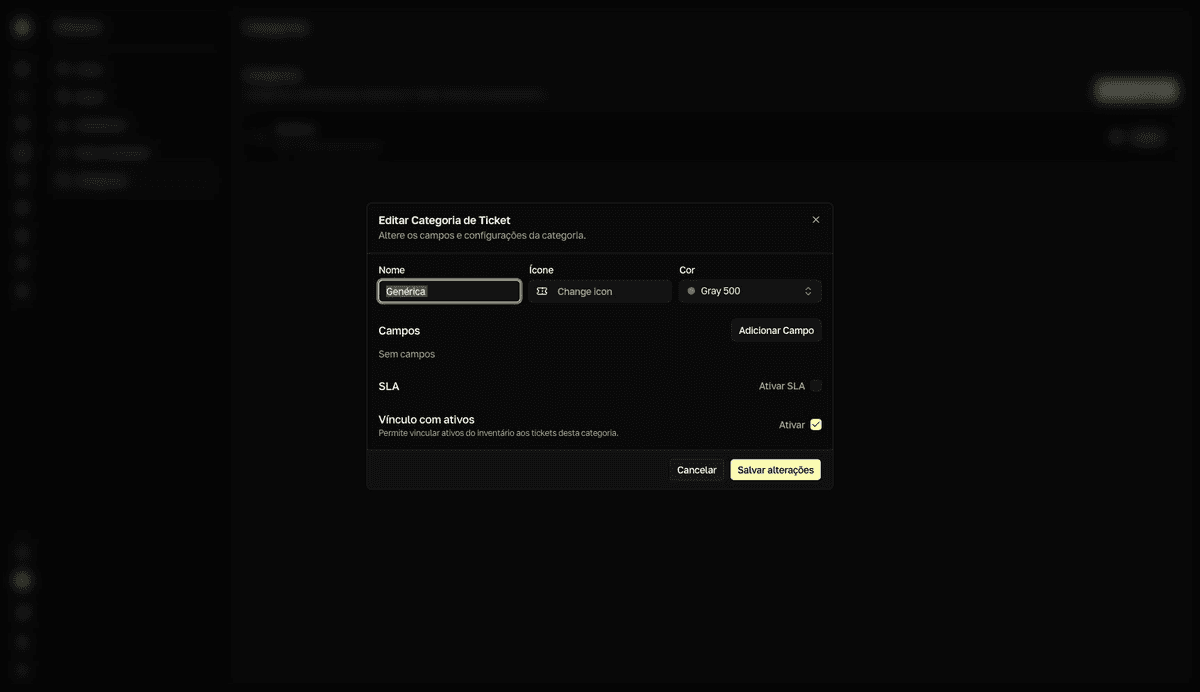
Check Ativar (Enable) under Vínculo com ativos (Asset linking) so the category's tickets accept inventory devices — the Ativos afetados (Affected assets) section at creation and the Ativos vinculados (Linked assets) panel on the ticket.
Edit — but don't delete
Categories can't be deleted
You can edit everything in Editar Categoria de Ticket (Edit ticket category), but there is no category deletion. Pick names with the long run in mind.