Add an asset
Register an asset in Inventory so the team knows it exists, what state it's in, and where it lives. The only required fields are the tag and the category.
Before you start
Create a category before the first asset
You can't create an asset without a category — the form answers "A categoria é obrigatória" (Category is required), and a new team starts with none. Create one in Categories, or register the asset from a device, which offers to create the "Endpoints" category automatically.
Create the asset
- 1
Open `Items` in the Inventory sidebar.
You see the "Itens do inventário" (Inventory items) list with the assets already registered.
- 2
Click `Adicionar item` (Add item).
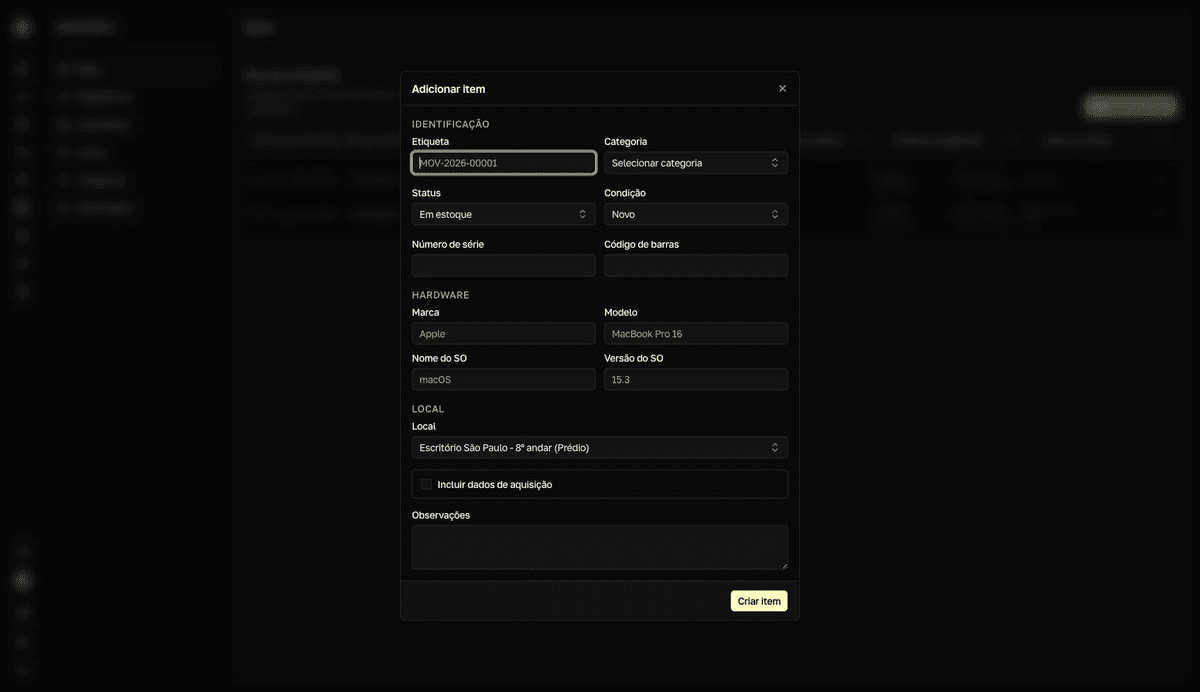
The creation dialog opens, with the Identificação (Identification), Hardware, Local (Location), and Observações (Notes) sections.
- 3
Fill in the `Etiqueta` (Asset tag) and select the `Categoria` (Category).
The tag identifies the asset physically — for example,
MOV-2026-00001. If the category has custom fields, they appear underCampos da categoria(Category fields). The status starts asEm estoque(In stock) and the condition asNovo(New); adjust if needed. - 4
Fill in what you know under Hardware and Location.
Brand, model, OS,
Número de série(Serial number), andCódigo de barras(Barcode) help search and device linking. The team's first location comes pre-selected. - 5
Check `Incluir dados de aquisição` (Include purchase details) to record the purchase.
The Aquisição (Purchase) section takes the order number, purchase date, cost, and currency (BRL, USD, or EUR). You can fill it in later, when editing the asset.
- 6
Click `Criar item` (Create item).
resultToast "Ativo criado com sucesso" (Asset created successfully). The asset detail opens, ready to assign, add a warranty, or link a device.
Assigning to a person doesn't happen on this form: after creating, use Atribuir (Assign) on the asset detail — see Assign, return, and track. You can also open this dialog from any page with the Novo ativo (New asset) action in the command palette.