Import assets by CSV or XLSX
Register many assets at once from a spreadsheet — up to 5 MB and 1000 rows per file. The wizard has four steps: Upload, Mapping, Preview, and Execution, and you can revert after it completes.
Before you start
- The
Importspage appears only for members withGerenciador(Manager) access — see Who can do what. - The file's first row must contain the column headers; they feed the automatic mapping suggestions.
Import the spreadsheet
- 1
Open `Imports` in the Inventory sidebar and click `Nova importação` (New import).
The list shows each import with its status — from
Arquivo enviado(File uploaded) toConcluído(Completed),Falhou(Failed),Cancelado(Canceled), orRevertido(Reverted). Clicking an import resumes the wizard where it left off. - 2
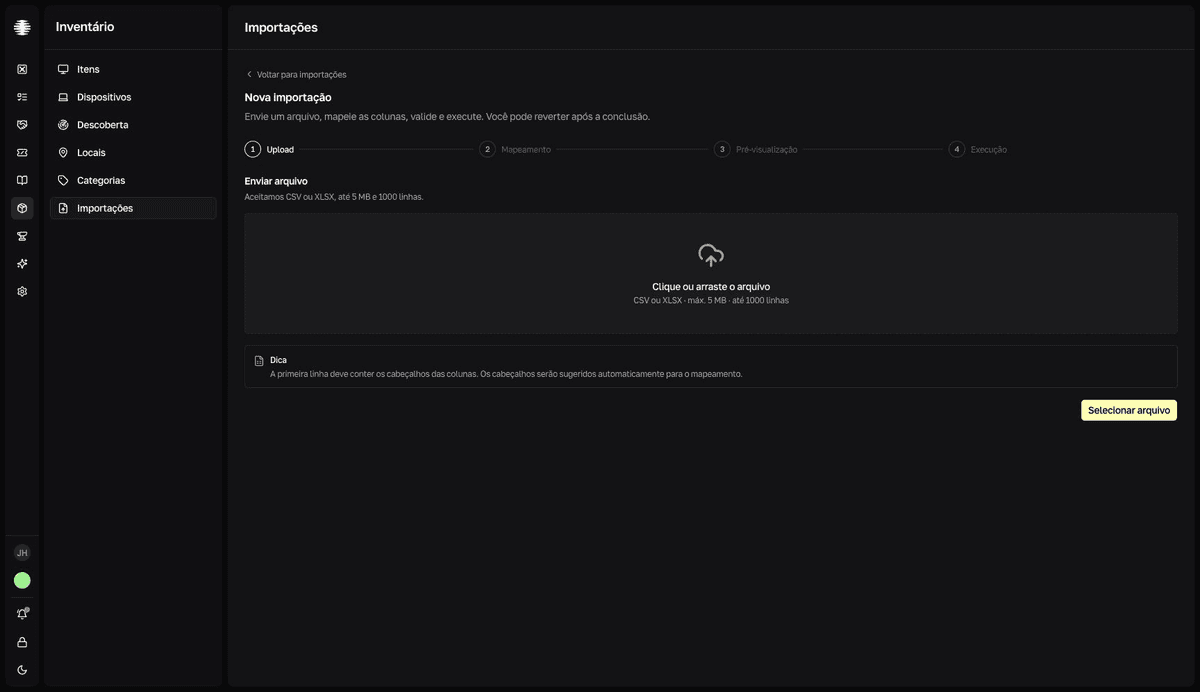
Upload the file in the Upload step.
Drag it to the "Clique ou arraste o arquivo" (Click or drag the file) area or use
Selecionar arquivo(Select file). CSV or XLSX, up to 5 MB and 1000 rows — beyond that the upload answers "O arquivo excede o limite de 5 MB." (the file exceeds the 5 MB limit) or "Formato não suportado. Envie um CSV ou XLSX." (unsupported format). - 3
Map the columns in the Mapping step.
Match each file column to an asset field; the required ones are
Etiqueta(Asset tag),Categoria (ID)(Category ID),Status, andCondição(Condition). Automatic suggestions come marked with ✨; useNão mapear(Don't map) to skip a column. Category custom fields appear as "(custom)". - 4
Use `Valores padrão` (Default values) for what the spreadsheet lacks.
The
Categoria (ID),Local (ID),Responsável (ID), andFornecedor (ID)fields expect identifiers, not names. The practical path: leave those columns unmapped and select the category, status, and condition in theValores padrão(Default values) section — they apply when the mapped column is empty. - 5
Choose the `Estratégia para duplicadas` (Duplicate strategy) and the `Chave de correspondência` (Match key).
Strategy:
Pular linhas duplicadas(Skip duplicate rows),Atualizar linhas duplicadas(Update duplicate rows), orFalhar ao detectar duplicada(Fail on duplicate). Key:Etiqueta (assetTag)orNúmero de série (serialNumber)— the chosen column must be mapped, otherwise you get "A chave selecionada precisa estar mapeada." (the selected key must be mapped). ClickSalvar mapeamento(Save mapping). - 6
Review the Preview.
The cards show how many rows fall under Criar (Create), Atualizar (Update), or Pular (Skip); rows with errors are ignored during execution. Use
Baixar erros (CSV)(Download errors) to fix the file, orRecalcular(Recalculate) after adjusting the mapping. When it looks right, clickContinuar para execução(Continue to execution). - 7
Click `Iniciar importação` (Start import).
Keep the window open during execution;
Cancelar(Cancel) stops it at any time.result"Importação concluída" (Import completed), with the Criados (Created), Atualizados (Updated), and Ignorados (Skipped) totals. The assets appear in Items.
Revert undoes the whole import
After completion, Reverter importação (Revert import) deletes the created assets and returns the updated ones to their previous state. The revert itself can't be undone — review the preview before running, and revert only when you're sure.
Reuse the mapping with templates
If you import the same spreadsheet every month, click Salvar como template (Save as template) in the Mapping step: the mapping, the default values, the strategy, and the key are saved under a name (for example, "Monthly Dell laptops"). On the next import, use Carregar template (Load template) and apply it.